

Memory & Context
Memory lets your assistant carry useful knowledge from one conversation into the next. Memory organizes that knowledge into a linked wiki of concepts, then recalls the parts that fit the work in front of you.
This is different from keeping an endless transcript in the prompt. Your assistant maintains structured knowledge over time and chooses what to bring into each conversation.
Memory and context are different
Memory is persistent. It holds facts, preferences, corrections, plans, decisions, and relationships that may matter again after the current conversation ends.
Context is what the assistant can use right now. It may include recent messages, relevant memories, workspace files, active skill instructions, and results from tools.
What memory keeps
Memory works best for information that should change how your assistant helps later. Common examples include:
- Your preferences and working style
- People, projects, places, and how they relate
- Plans, commitments, decisions, and corrections
- Important events and outcomes
- Facts that are likely to matter in future work
Memory is not meant to preserve every sentence. Temporary instructions, casual filler, and details with no future value can stay in the current conversation without becoming long-term knowledge.
How memories are captured
Your assistant can save a memory when you state something concrete that will matter later. Direct requests such as “remember that I prefer short weekly updates” make your intent clear, but you do not need to use a special phrase every time.
Memory also reviews eligible conversations in the background for useful facts that were not saved during the turn. This review is selective. It aims to preserve durable knowledge, not copy the whole conversation.
You can also open memory and choose Create memory to add a fact yourself. It appears on the map while your assistant files it into the right concept.
How memories are organized
Memory groups related knowledge into concept articles. A person, a project, a recurring process, or an important topic can have its own article. Each article has a short overview and focused sections that can be searched independently.
Concepts link to one another, forming a wiki rather than a pile of isolated facts. A project can connect to its owner, decisions, meetings, and related documents. Those links help the assistant move from the thing you named to the surrounding knowledge that may also matter.
New facts are filed into existing concepts when they belong there. When something distinct appears, memory can create a new concept and connect it to the rest of the map.
How recall works
On each turn, your assistant searches for concepts and sections that match the current message and recent conversation. It can also follow useful links between concepts and keep recently relevant knowledge in view as the discussion develops.
Recall is selective by design. The assistant receives a bounded set of relevant memory, not the entire wiki, and no single memory is guaranteed to appear on every turn.
When you need a broader search, ask directly. Your assistant can search memory alongside past conversations and workspace files instead of relying only on the memories selected automatically.
Explore the memory map
Open memory from your assistant to see its concepts and the links between them. Search the map to find a concept, then select a node to read its note and explore the concepts wired to it.
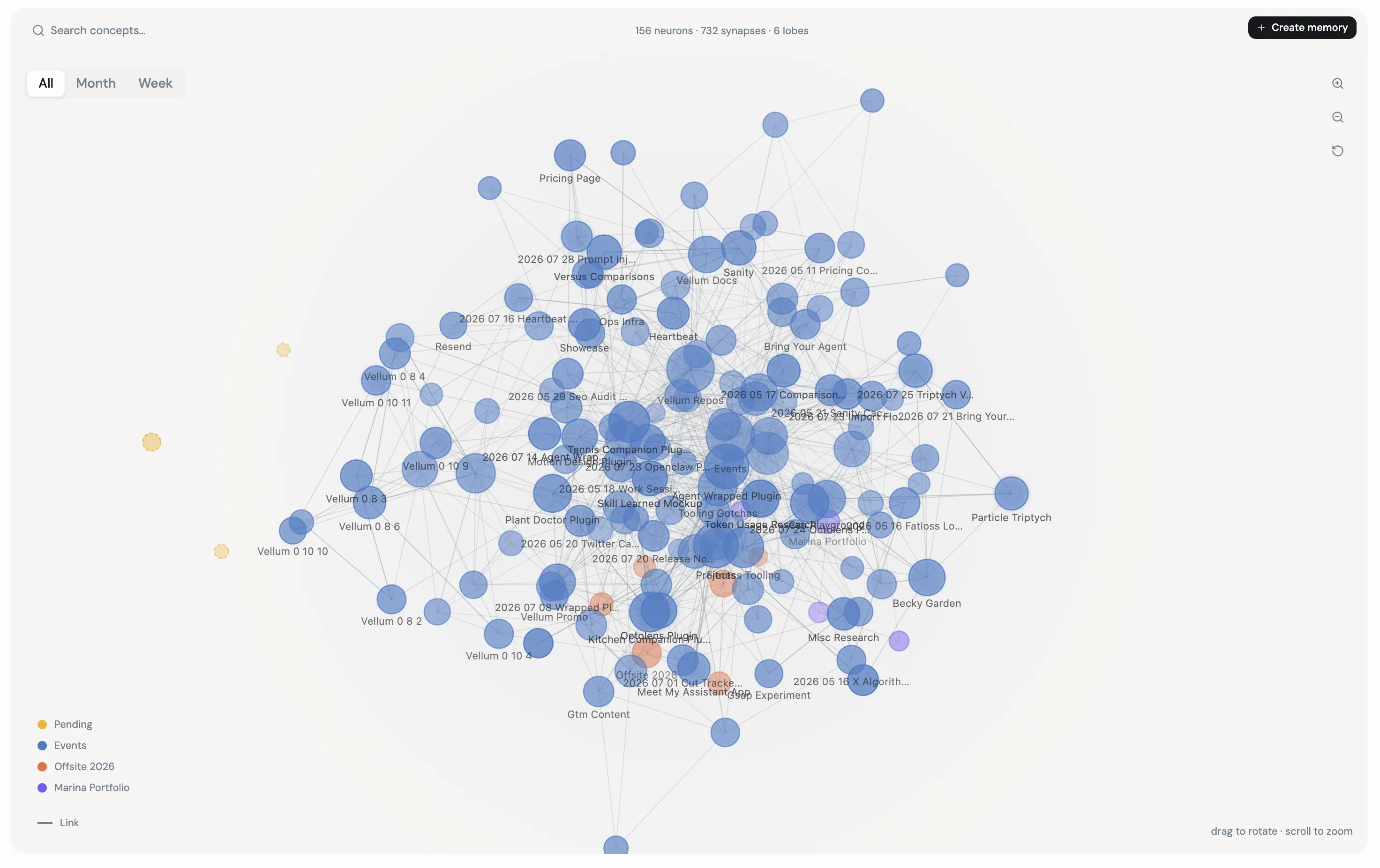
If memory says your assistant uses an older memory engine, follow the guided upgrade from that page. Your assistant will inspect the current memory corpus and explain the change before reorganizing it.
From a concept, choose Ask about this to start a conversation with that topic in view. Choose Refine when something is incomplete or wrong, and the assistant will ask what needs to change.
The map grows and rearranges as concepts are added, updated, and linked. It is a view of the assistant’s organized knowledge, not a timeline of every conversation.
Correcting a memory
Corrections should replace outdated understanding, not sit beside it as a competing fact. Tell the assistant what changed, or open the concept in memory and choose Refine to correct it together.
Refining a concept updates the assistant’s current understanding while preserving the surrounding relationships that still matter.
What happens in long conversations
A model cannot keep an unlimited conversation in its active context. When a thread grows, older parts can be summarized or moved out of the immediate working set so the conversation can continue.
Persistent memory is separate from that process. Useful facts saved from earlier in the conversation can still be recalled later, even when the original messages are no longer part of the active context.
Memory can preserve facts and procedures
Facts belong in memory. A reusable procedure can become a skill. After completing eligible work, your assistant may preserve a process it actually used so it can follow that process again.
Learn how that works in Self-improving Skills.
Privacy and control
Relevant memories can be included in requests to the language model that powers your assistant. Treat memory as persistent assistant knowledge, and avoid storing sensitive information you do not want used in future conversations.
You can inspect what your assistant knows from the memory map, refine inaccurate concepts, or turn memory off. When memory is off, the assistant stops keeping information from conversations for future recall.
Self-hosted assistants keep their workspace and memory on infrastructure you control. Managed hosting stores that data in Vellum’s hosted environment. See Privacy & Data for deployment and data-handling details.